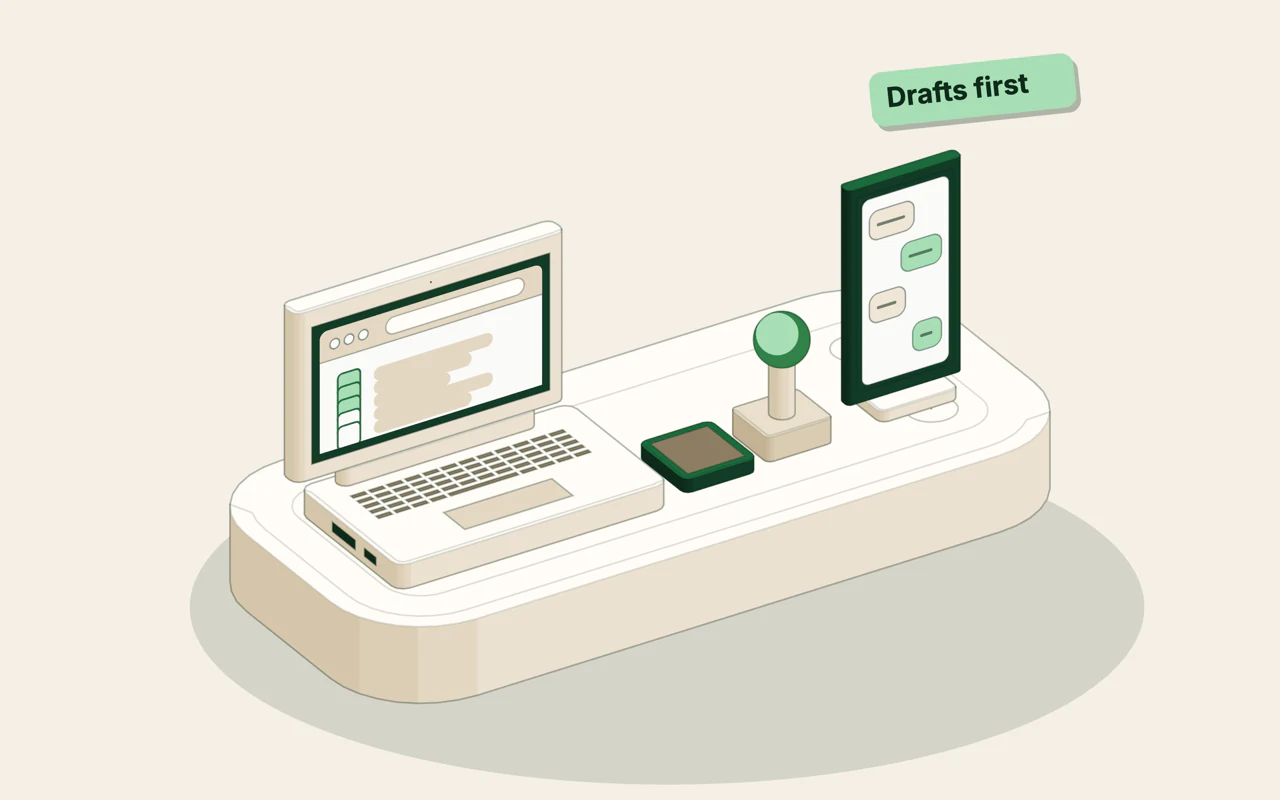
Grok Bot is the tool I lean on hardest for the business side of my work. It is also the easiest of these apps to set up badly, because it can do real things: send email, change a calendar, click through a website. This lesson takes you from installing it to a small team of Bots that draft, sort and remember, with every outgoing action waiting for your yes. It is written for people who run a practice, and it draws one firm line early: Grok Bot is not a place for client information.
Disclosure: This is my invite link; I may get a reward if you sign up. If you are an eligible new user, you get a two-week Premium trial, and you must enter a credit card, so note the end date. If you become a paying subscriber, I get a free usage reset, which has no cash value. That is the whole arrangement.
Try Grok Bot with my invite link

What Grok Bot is
Grok Bot is an app from SpaceXSI, the company behind Grok, and it runs on your Cursor account. Inside it you work with AI helpers called Bots. The official docs call a Bot "an AI teammate with its own computer in the cloud" (How Grok Bot works). Four things set it apart from an ordinary chat app:
- Its own computer. Each account gets a computer in a data center, with a browser and files. Your Bots use it to visit sites and do tasks, and the work keeps going after you close your laptop.
- Memory. A Bot keeps your preferences and rules, so you stop repeating yourself.
- Skills. Once a task works, the Bot can save the method as a written recipe and follow it next time.
- Routines. A Bot can run a task on a schedule, or when something happens. That is the subject of the next Grok Bot lesson.
One fact shapes everything else: a Bot has no account of its own. When it uses your Gmail, it uses your Gmail, with exactly your access, and every action traces back to you. That is why the approval habits later in this lesson matter more than any clever prompt.
Which plans include it
Grok Bot is not free. As of November 24, 2026, the official pricing page lists Premium at $30 a month, Super at $100 and Ultra at $200, and all three include Grok Bot. Plus, at $8, does not, and neither does the free tier. Everything you do in Grok Bot draws from one weekly usage pool shared with Grok and Cursor (Usage limits), so a bigger plan mostly buys more work per week. Prices move, and some YouTube tutorials show old ones; check the pricing page before you buy.
Install it on a computer and a phone
- Go to x.ai/bot and choose Download. The desktop app runs on Mac, Windows and Linux.
- Open it, choose Sign in, and finish signing in in your browser.
- After a short intro, the app creates your first Bot, named Grok Bot, and opens a chat with it (Get started).
- Install the phone app and sign in with the same account. It reaches the same Bots, chats and cloud computer. Turn on notifications so you know when a Bot needs your OK.
The phone is where I approve most drafts, in the gaps between other work.
Your first message sets the rules
Your first Bot is your primary Bot, marked with a star in the sidebar. It is your main contact and can coordinate any Bots you add later. The docs suggest the first message say what the Bot's job is, which sources it may use, and where it must stop and ask (Create and manage Bots). Then ask it to remember. Adapt this one:
Hi. I'm a [therapist / massage therapist / coach] in private practice. Your job is to help with practice admin: email, scheduling, marketing drafts and my continuing education records. Please remember these rules: 1. Never send, post, publish, delete or pay for anything without my approval; always show me a draft first. 2. I will never share client information with you. If something looks like client information, stop and tell me. 3. Write in a warm, plain, professional voice. No hype. 4. Ask me before you connect any new app. First task: give me a one-page checklist for a simple weekly admin routine for a solo practice.
While it works, the chat shows its steps. If it needs your OK, an approval card appears with the action and the buttons to allow or deny it.
How to ask well
The docs say to ask the way you would ask a coworker. A request that works has five parts:
- Result: what you want back ("the five emails that need me today").
- Sources: where to look ("only my admin inbox, last three days").
- Limits: what it must not do ("do not reply or archive anything").
- Check-in point: when to stop and ask ("before drafting to anyone new").
- Format: how it should look ("a short table: sender, topic, next step").
"Help with my email" is a weak request. A strong one reads: "Sort the last three days of my admin inbox into urgent, needs a reply and FYI. Draft replies only for vendor and workshop questions. Send nothing." For anything important, ask it to separate what it found, what it guessed, what it did, and what is waiting for you (Files and results). To redirect a Bot mid-task, send a new message. To stop it, send "Stop now"; that does not undo what is already done.
Connect one app, carefully
A connector (the app says "apps") is a secure link between your Bot and a service such as Gmail, Google Calendar or Google Drive. It is more reliable than having the Bot click around a website (Use the computer and apps). Open Connect apps in the sidebar, add the app, sign in to the service when asked, and check it shows under Installed.
- Gmail can search, read, draft, send and label, one mailbox at a time.
- Google Calendar can read calendars you can see, create and change events, and check free time.
- Google Drive can search and read files and save new ones.
A connected app can only do what your own account can do, and it is account-wide: every Bot you own can use it. My rules for a practice: connect only an inbox clients never write to, such as a separate admin or vendor address. Keep client names out of any calendar you connect; generic titles like "Session" or "Hold" are enough. Start with one app and add the next when you trust the first.
Approvals and Auto-review
Auto-review is the built-in checker. Before a Bot runs a command, uses an app or acts on its computer, Auto-review looks at the action. Most actions just run. When one needs you, an approval card appears and the Bot waits (Approvals, security, and privacy). It treats only your messages as instructions, so hidden text in a web page or email telling the Bot to do something is not your request. That lowers the risk; it does not remove it.
A card offers Allow once, Always allow (which saves a rule, so use it rarely) and Deny. Read the target, the recipients and the content before you approve, and never approve something you cannot explain. Cards raised by a routine expire after 30 minutes; cards from your own messages wait.
The setting I would change on day one is your own Ask first rules. Open Settings, then General, find Auto-review under Bot and make sure it is on. Open Custom rules, describe one action in plain words, set it to Ask first, and add it. Mine cover these:
- sending any email or message
- posting or publishing anything online
- creating, changing or deleting calendar events
- deleting or overwriting any file
- buying or paying for anything
- changing any website or sharing a file
Ask first always wins over Allow automatically. Keep each rule short and narrow.
Drafts, not sends
By default a Bot drafts outgoing email for you. The chat shows an editable draft card marked Needs approval; you check the recipients and the words, then choose Send or Discard (Message and collaborate). There is an option to disable drafts so a Bot can send directly. I never turn it on, and I would not for a practice. Read every draft before it goes, every time.
Memory: tell it on purpose
Memory is what a Bot keeps between chats: your rules, preferences, a few facts like your time zone, and a log of its work. There is no memory screen; you manage it by talking. Ask "What do you remember about me?", then add ("Remember I don't take calls on Fridays"), correct or remove what is wrong. A Bot decides on its own what to save, so say important things on purpose.
Memory is not a source of truth for things that change, like prices; ask the Bot to look them up again. It is not a safety lock either, which is why the Ask first rules above exist. Passwords belong in Vault, under Settings, never in a chat message. And client information belongs nowhere in it.
Skills: save the recipe
A skill is a saved set of instructions for one task, shared across your Bots (Skills and routines). The docs give the order: do the task once, make it reliable, save the method as a skill, and only then automate it. After a good run, say something like:
Save the process we just used as a skill called "Weekly social drafts." Include which folder to read, my voice notes, the three post types, the rule that nothing is posted without my approval, and the rule to never mention clients or outcomes.
A good skill says when to use it, what access it needs, the steps in order, how to check the result, what to return, and what needs approval. Run it later by name: "Run my Weekly social drafts skill."
The line: no client information, ever
This part is not optional. Grok Bot is a business tool, not a clinical one, and it is not for client information: no names with details, notes, intake forms, insurance records, or messages from clients, and no inbox or calendar that holds any of those. The Grok Bot docs I checked on November 24, 2026 do not mention HIPAA, and the BAA form on x.ai covers SpaceXSI's developer API, not Grok Bot. Grok Bot also picks which AI model handles each task, and it may be one from an outside AI company; you cannot choose (FAQ). So I treat it as unsuitable for anything clinical, and so should you. Removing names is not enough. The longer version of this line is in HIPAA-safe AI tools, BAAs, and what not to paste.
A Bot is also never a crisis line. Do not set one up to answer client messages on its own. Any template, auto-reply or post you approve should keep crisis language up front, for example: "If you are in crisis, call or text 988 (Suicide and Crisis Lifeline, US) or call 911. This inbox is not monitored for emergencies." (988 Lifeline)
From one Bot to a small team
Most Bots work best with one clear job. Start new work with your primary Bot; when the same kind of request keeps coming back with its own sources, rules or schedule, give it its own Bot (How Grok Bot works). Choose New Bot at the top of the sidebar, name it and give it its job in the first message, the same way you did above.
A group chat puts two to six Bots in one conversation toward a shared goal. Type @ and pick a Bot to direct a message to it, and give each one a single step:
@Researcher find three reputable sources on sleep hygiene for a handout. @Writer turn them into one page at a sixth-grade reading level. @Reviewer check the page against the sources and list only real problems. Do not publish anything.
Approval cards and email drafts appear in each Bot's own chat, not in the group. Every Bot reply uses your allowance, so fewer Bots in a group means less usage. Bots can also message each other to hand off work; if you would rather they did not, tell them "Don't message other Bots, ask me first" and ask each one to remember it.
One warning before you build a team: all your Bots share one cloud computer, with its files and its website sign-ins. If one Bot signs in somewhere, the others are signed in too. Separate Bots are not separate safes.
A first-week plan
- Install the desktop and phone apps and sign in on both.
- Send the first message above, with your rules, and ask what it remembers.
- Add three Ask first rules: send, post, delete.
- Connect one calendar and ask for a summary of next week. Approve nothing.
- Deny one approval card on purpose, to see what happens.
When that feels easy, the next lesson, Grok Bot as a business, shows the routines, shared computer and Bot team I run my studio on.
Plan names, prices and features here were checked against the linked pages on November 24, 2026. This product changes monthly, so trust the docs over this page when they disagree.
Disclosure: This is my invite link; I may get a reward if you sign up (a free usage reset for me, with no cash value; a two-week Premium trial for an eligible new user, card required). Start Grok Bot with my invite link
Further reading
- Grok Bot 101 guide, SpaceXSI. The official walkthrough, with screenshots.
- Approvals, security, and privacy, Grok Bot docs. Auto-review, custom rules, and how to remove access.
- Model, company, app, agent, harness. Where Grok Bot sits among the other tools.
This lesson's video has its own page
Sources
- “How Grok Bot works.” SpaceXSI (Grok Bot docs). Describes a Bot as "an AI teammate with its own computer in the cloud"; a Bot acts with your access; primary Bot and Bots with one job. https://docs.x.ai/grok-bot/how-grok-bot-works (accessed Nov 24, 2026).
- “Get started.” SpaceXSI (Grok Bot docs). Download, sign-in, first Bot named Grok Bot, and asking the way you would ask a coworker. https://docs.x.ai/grok-bot/get-started (accessed Nov 24, 2026).
- “Create and manage Bots.” SpaceXSI (Grok Bot docs). Primary Bot, first message with job, sources and stopping points; what a Bot remembers; memory is not a source of truth. https://docs.x.ai/grok-bot/bots (accessed Nov 24, 2026).
- “The X Subscription: pricing.” SpaceXSI. Premium $30, Super $100 and Ultra $200 include Grok Bot; Plus $8 and Free do not. Checked 2026-11-24. https://docs.x.ai/x-subscription/pricing (accessed Nov 24, 2026).
- “Usage limits.” SpaceXSI. One weekly usage pool shared across Grok, Grok Bot and Cursor. https://docs.x.ai/x-subscription/usage-limits (accessed Nov 24, 2026).
- “Use the computer and apps.” SpaceXSI (Grok Bot docs). Connectors for Gmail, Calendar and Drive; connected apps are account-wide; one computer shared by all your Bots. https://docs.x.ai/grok-bot/computer-and-apps (accessed Nov 24, 2026).
- “Approvals, security, and privacy.” SpaceXSI (Grok Bot docs). Auto-review, approval cards, custom Ask first rules, least-privilege setup, removing access. No mention of HIPAA as of 2026-11-24. https://docs.x.ai/grok-bot/approvals-security-and-privacy (accessed Nov 24, 2026).
- “Message and collaborate.” SpaceXSI (Grok Bot docs). Draft cards marked Needs approval; group chats of two to six Bots; Bots handing work to each other. https://docs.x.ai/grok-bot/chat-and-collaboration (accessed Nov 24, 2026).
- “Skills, routines, and automations.” SpaceXSI (Grok Bot docs). Do a task once, make it reliable, save it as a skill, then automate it. https://docs.x.ai/grok-bot/skills-routines-and-automations (accessed Nov 24, 2026).
- “Files and results.” SpaceXSI (Grok Bot docs). Asking for a reviewable result that separates findings, guesses, actions taken and actions waiting for approval. https://docs.x.ai/grok-bot/files-and-results (accessed Nov 24, 2026).
- “FAQ.” SpaceXSI (Grok Bot docs). Grok Bot chooses the model for each task; you cannot pick it. https://docs.x.ai/grok-bot/faq (accessed Nov 24, 2026).
- “988 Suicide & Crisis Lifeline.” 988 Lifeline. Call or text 988 in the US. https://988lifeline.org (accessed Nov 24, 2026).
Study guide
Key terms
- Bot: an AI helper with a name, a job, its own chat and its own memory
- Primary Bot: your main Bot, marked with a star, which coordinates the others
- Cloud computer: the computer in a data center all your Bots share; files and sign-ins are shared too
- Connector: a secure link to a service such as Gmail; account-wide, so every Bot can use it
- Auto-review: the checker that looks at each action before it runs
- Approval card: Allow once, Always allow (rarely), or Deny
- Ask first rule: a plain-words rule in Settings that makes an action wait for you
- Draft card: an email marked Needs approval that waits for Send
- Memory: rules and preferences kept between chats; not a source of truth, not a safety lock
- Skill: a saved recipe for one task
Facts that move (checked November 24, 2026)
- Premium $30, Super $100 and Ultra $200 include Grok Bot; Plus $8 and Free do not (pricing)
- One weekly usage pool is shared with Grok and Cursor
- Group chats hold two to six Bots
- Approval cards from routines expire after 30 minutes
The rules to keep
- No client information in Grok Bot, ever; removing names is not enough
- Connect only an inbox clients never write to; no client names in a connected calendar
- Ask first rules for send, post, delete, pay, calendar and website changes
- Drafts stay on
- Crisis language (988, 911) up front in anything client-facing
Try it
- Write your first message: job, sources, stopping points, remember
- Add three Ask first rules
- Connect one calendar and ask for next week's summary
- Deny one approval card on purpose
Check what you learned
10 questions from this lesson. Answers are checked as you go; nothing is recorded.
1 / 10
Which of these plans does NOT include Grok Bot, as of November 2026?
Hint
The cheapest paid plan is the odd one out.
Premium, Super and Ultra include Grok Bot. Plus and the free tier do not.
2 / 10
When a Bot uses your connected Gmail, whose access does it use?
Hint
A Bot has no account of its own.
A Bot acts as you, with exactly your access, and every action traces back to you.
3 / 10
What should your first message to a new Bot include?
Hint
Think of briefing a new assistant on day one.
The docs suggest stating the job, the sources and the stopping points, then asking the Bot to remember them.
4 / 10
By default, what happens when a Bot prepares an email?
Hint
Nothing leaves until you press one button.
Bots draft by default. You check recipients and text, then choose Send or Discard.
5 / 10
Where do you add an Ask first rule?
Hint
It lives under the Auto-review switch.
Custom rules sit under Auto-review in Settings. Ask first always wins over Allow automatically.
6 / 10
Which inbox is a sensible first one to connect for a practice?
Hint
Think about what the Bot would read.
Grok Bot is not for client information, so connect only an inbox that never receives client messages.
7 / 10
True or false: separate Bots keep their files and website sign-ins separate.
Hint
How many cloud computers does an account get?
All your Bots share one cloud computer, with its files and sign-ins. Separate Bots are not separate safes.
8 / 10
What is the right order for turning a task into automation?
Hint
The docs give a four-step order.
Do the task once, make it reliable, save the method as a skill, and only then automate it.
9 / 10
A website asks your Bot for a password. Where should it go?
Hint
Never in a normal chat message.
Vault, a connected password manager or a Secure Form keep the password out of the chat and out of the Bot's view.
10 / 10
A colleague wants to paste de-identified session notes into Grok Bot. What is the best answer?
Hint
What do the docs say about HIPAA?
The docs checked on November 24, 2026 do not mention HIPAA and no BAA covers Grok Bot, so clinical material stays in your HIPAA-covered records system.
Worth another look


