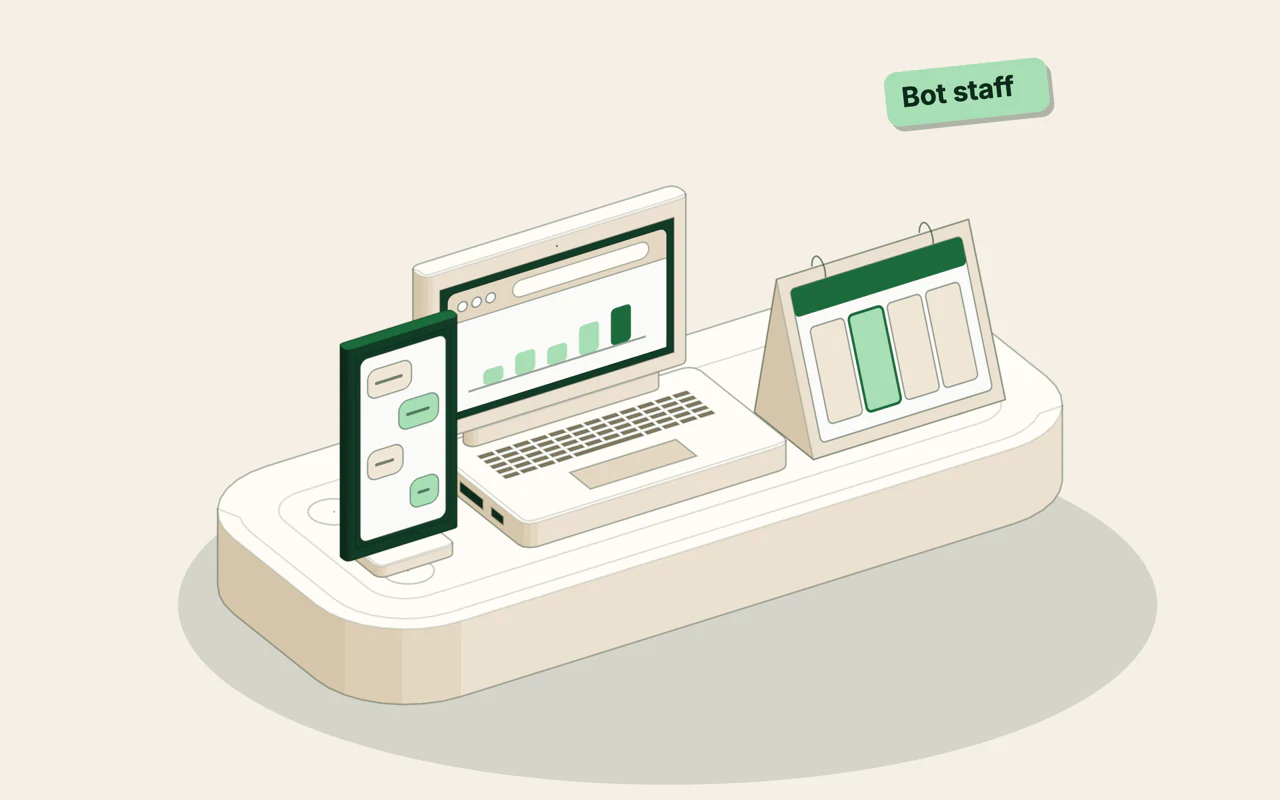
The last Grok Bot lesson ended with one Bot, a few rules and drafts that wait for you. This one shows where that can go when you treat Bots as a small staff: routines that run while you sleep, a shared computer that does browser work, Pages, a team of single-job Bots, and code handed to Cursor. I start with my own setup, because seeing a whole one makes the pieces easier to place. Yours can stay much smaller.

My team of Bots
I do not use one giant assistant. I run a team of named Bots, each with one job. They share one cloud computer, message each other to hand off work, and many of them run routines on a schedule.
- Frida is my primary Bot and coordinator. I tell her what I need; she routes it and keeps track of what is done.
- Seven studio leads cover my web and media studio: Mike (engineering), Sarah (design and video), Dave (shipping and QA), Jessica (growth), Chris (client delivery), Tom (research) and Emily (messages, all drafts for my approval).
- A marketing team of five, Nora, Owen, Maya, Theo and Iris, splits the marketing work for Oregon Healing: ideas, drafts, graphics, scheduling and checking.
- Rebecca is my personal assistant for everyday life admin.
I also use Claude, the assistant from the earlier lessons, as a reviewer. When a Bot finishes a piece of work, it writes a short hand-off note and drops the files in a shared folder on my Mac mini. Claude reads the note, reviews the work, scores it and lists what to fix. The Bot fixes it, and it ships only after I approve. Grok Bot builds, Claude reviews.
In a normal week my Bots build demo websites and test every page at phone and desktop sizes, render short video reels in code and check them frame by frame, draft social posts from a planning dashboard, schedule approved posts in Meta Business Suite through the Bot's own browser, sort my inbox into drafts, and make images for mockups.
The honest part: it asks before sending, paying or deleting, because I set it up that way. Everything gets a human look before it goes out. It is sometimes confidently wrong. And none of it touches client information. It is a business tool, and I keep it that way.
Routines: work on a schedule
A routine tells one Bot when to run a task: on a schedule ("every weekday at 8 AM") or when something happens, such as a new email to the Bot's own address, a Slack message, or a webhook. Routines run in the cloud while your laptop is closed (Skills, routines, and automations). Make the task a skill first, then ask the Bot that should own it:
Every Monday at 7:30 AM Pacific, run my "Weekly social drafts" skill. Put three draft posts in this chat for my review. Do not post anything. If the ideas folder is empty, tell me instead of making things up.
Before you rely on one, check six things: which Bot owns it, the schedule and time zone, where its information comes from, what result you expect, where it must stop for approval, and what it does if a source is missing. A new routine waits for its next time; open it and choose Test to try it now. A test does real work, so use safe inputs. Routines live on the Bot's Details tab, each with a switch to pause it.
Routines must be at least five minutes apart, and a Bot can own up to 50. Every run uses part of your weekly allowance, and the docs warn that an hourly schedule can use a week of usage in a day. Start weekly. A routine can also just watch and tell you: "Every weekday at 9 AM, check my admin inbox for new workshop questions; if there are none, stay quiet."
The shared computer
All your Bots share one cloud computer with a browser, files and a command line. Each Bot gets its own screen, so several can work at once, but files and website sign-ins are shared (Use the computer and apps). You can click the computer preview in a chat to watch a Bot's clicks live. This is how my Bots work in sites that have no connector.
When a site needs a login, the Bot tries Vault (logins you saved under Settings), then a password manager you connected, then a Secure Form, where you type the password and it goes straight to the site without the Bot seeing it. Never paste a password, a one-time code or an API key into a chat message. When a step needs a human, such as a passkey or a "prove you're human" puzzle, choose Take over, do only that step, choose I'm done, and tell the Bot to continue.
The cloud computer is not your laptop. A Bot runs commands on your own computer only if you allow it under Settings, Computer; the docs suggest Never allow unless a Bot has a specific reason. On a phone, a Bot can use some phone apps when you ask, including Contacts. If your phone contacts include clients, leave that off.
One note on something I have not been able to confirm: an official post from the @bot account on X says Grok Bot on Mac can now use Messages, Mail, Notes, Reminders, Calendar, Location and Contacts. The docs I read on November 24, 2026 do not cover it yet, so treat it as unconfirmed. If it reaches your Mac, the same rule applies: those apps hold client messages for many of us, so keep the Bot out of them.
Pages, files and images
A Page is something a Bot builds for you to read: a report, tracker, checklist or simple dashboard, with tables and charts (Files and results). Ask for one in chat, open the card, and type changes beside it. A new Page is private to you. Sharing it with "Anyone with the link" makes it public at an address on pages.grok.bot, readable without signing in, so share that way only when it holds nothing private. Pages are rolling out gradually.
You can attach up to 20 files to one message, and a Bot can make images and short video clips of 1 to 15 seconds for drafts and mockups.
A team of single-job Bots
The official marketing guide shows the pattern I use: several Bots, each with one narrow role, coordinated by one primary Bot.
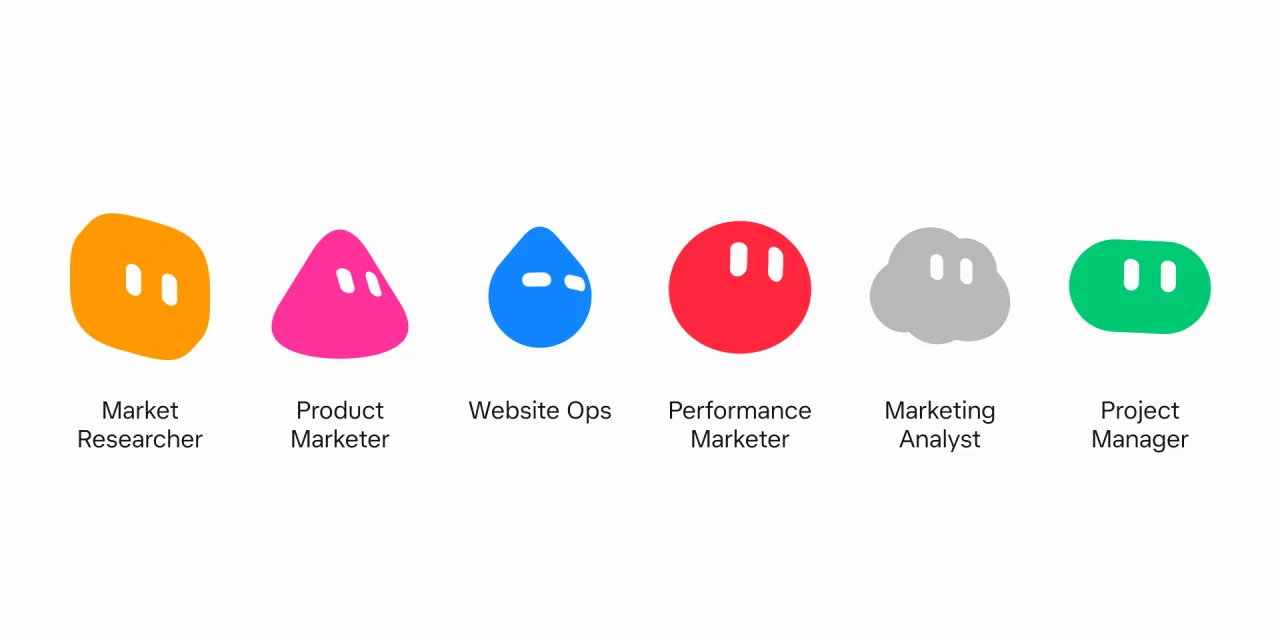
For a solo practice I would stop at three: an Inbox Bot that sorts admin mail and drafts replies, a Social Bot that drafts weekly posts, and an Admin Bot for the calendar, the newsletter and CE tracking. Group chats hold two to six Bots; approval cards still appear in each Bot's own chat (Message and collaborate).
For a group practice, a Team or Enterprise plan lets you share one Bot with colleagues as a Team Bot, each with a private chat (Team Bots). Its apps, skills and files work in every teammate's chat, so only add what everyone may use. You can also tag @bot in a public post on X to hand that post to your main Bot. Anything on X is public, so never tag it on anything to do with a client.
Sharing a Bot as a template
A template shares a copy of a Bot's setup. The official guide calls it "a recipe, not a meal": the other person gets the instructions, skills and routines, then builds their own version (Templates for Grok Bot). Open the Bot's details, choose Share, then Create a copy, then Publish and Copy link. Your computer, logins, conversation history and personal memories do not carry over. A public template link shows the Bot's description, skills and routines to anyone who has it, so remove private email addresses, internal links and keys first.
Code: hand it to Cursor
Cursor is the coding app that runs on the same account. A Cloud Agent is a Cursor helper on its own cloud computer: it copies your site's code, makes changes on a separate copy called a branch, and returns a pull request, a proposed change you review before it goes live, often with screenshots (Cursor Cloud Agents). A Bot can write the request and hand it over. You need your site's code in a code host such as GitHub; a site on a hosted builder may not fit. A safe request ends with "Do not publish. Bring me back screenshots on a phone and a computer."
Voice, calls and meetings
You can dictate, hold a live voice chat with one Bot (a transcript lands in the chat), or get a voice memo back. A Bot can also phone a business for you, in the US only, after you accept the calling terms, and each call waits for you to choose Call or Cancel. A Bot can join Google Meet, Zoom or Microsoft Teams calls and send a summary on Team, Enterprise, Ultra and Super plans, not Premium (Meetings).
Two rules for a practice. Never have a Bot call a client, a client's family, or an insurer about a client; keep calls to errands like store hours. Never invite a Bot to a session, a consultation, supervision about clients, or any meeting where client information comes up.
Usage: what a staff of Bots costs
Every plan's weekly pool is shared across Grok, Grok Bot and Cursor (Usage limits). Usage follows how much work a Bot does, not how many messages you send. Long open tasks, frequent routines, big group chats and Bots messaging each other use the most. Settings, Usage & billing shows what is used, when it resets, and a By Bot chart, and you can set a spending cap there. Keep routines weekly or daily, keep instructions narrow, and pause what you no longer need.
The same line, at any size
A bigger setup raises the stakes; it does not change the rule. Grok Bot is not for client information: no names with details, notes, intake forms, insurance records, client messages, or inboxes and calendars that hold them. The Grok Bot docs I read on November 24, 2026 do not mention HIPAA, and no BAA covers it. Hidden instructions in a web page or email can try to steer a Bot, which is one more reason to give each Bot only the access its job needs. Once a month, list your connected apps, routines, shared Pages and sign-ins on the Bot's computer, and remove what you do not use. The full reasoning is in HIPAA-safe AI tools, BAAs, and what not to paste.
Seven practice workflows, no client data
These are education, not a setup to copy blind. Each one runs on business information only.
- Inbox drafts. On an admin inbox clients never write to: sort the last day's mail into needs me today, can wait, and newsletters; draft replies to vendor and workshop questions; send nothing; flag anything that looks like a client message without opening it.
- Your week ahead. With generic calendar titles: every Sunday, flag double bookings and days with no lunch break, and change nothing.
- Social drafts. From a "Post ideas" folder: three captions a week, warm and plain, no outcome promises, no client stories, crisis line note on anything educational, never posted without you.
- Monthly newsletter. A seasonal tip, a practice update, upcoming workshops, and your standard footer with the crisis line and unsubscribe note, saved as a draft document.
- Website text. Compare new page text with the live page and show the changes line by line, without touching the site. Bigger changes go to Cursor with screenshots.
- Blank templates. A Bot can lay out headings for a blank note template. It never sees a real note; you fill templates in your own HIPAA-covered records system.
- CE tracking. A private Page with course, sponsor, date, hours and category, a running total, and a monthly reminder of what is left. Check the requirements on your board's own site; rules change.
From beginner to a working staff
Move up only when the current level feels easy.
- First steps (week 1): install, send your rules, add three Ask first rules.
- Connected helper (week 2): connect a calendar and an admin inbox; review at least five drafts.
- Repeatable work (weeks 3 and 4): turn social drafts into a skill, then a weekly routine; use Test once; check your usage after a week.
- A small team (month 2): add an Admin Bot, build the CE Page, run a group chat, and practice Take over on a harmless step.
- Working staff (month 3 on): share a clean template with a colleague, hand a small text change to a Cloud Agent, run the monthly access audit, and write a one-page AI use policy for your practice that covers client information, review steps and crisis language.
If you have not started yet, Grok Bot's invite program sits behind the gift icon in the app. Disclosure: This is my invite link; I may get a reward if you sign up (a free usage reset for me, with no cash value; a two-week Premium trial for an eligible new user, card required). Try Grok Bot with my invite link
Plan names, limits and features here were checked against the linked pages on November 24, 2026. Trust the docs over this page when they disagree.
Further reading
- Grok Bot for Marketing, SpaceXSI. The official guide to a team of single-job Bots.
- Grok Bot 101 guide, SpaceXSI. Routines, the shared computer and Cursor hand-offs, with screenshots.
- Grok Bot from first chat to a working team. The setup lesson this one builds on.
This lesson's video has its own page
Sources
- “Skills, routines, and automations.” SpaceXSI (Grok Bot docs). Schedule and event triggers; Test; at least five minutes apart; up to 50 routines per Bot; an hourly schedule can use a week of usage in a day. https://docs.x.ai/grok-bot/skills-routines-and-automations (accessed Nov 24, 2026).
- “Use the computer and apps.” SpaceXSI (Grok Bot docs). One cloud computer shared by all Bots; files and sign-ins shared; watching computer work. https://docs.x.ai/grok-bot/computer-and-apps (accessed Nov 24, 2026).
- “How Grok Bot works.” SpaceXSI (Grok Bot docs). Sign-in order: Vault, password manager, Secure Form; Bots with one job; hand-off to Cursor. https://docs.x.ai/grok-bot/how-grok-bot-works (accessed Nov 24, 2026).
- “Approvals, security, and privacy.” SpaceXSI (Grok Bot docs). Local computer access under Settings, Computer; keep passwords out of chat; least access. No mention of HIPAA as of 2026-11-24. https://docs.x.ai/grok-bot/approvals-security-and-privacy (accessed Nov 24, 2026).
- “Mobile.” SpaceXSI (Grok Bot docs). A Bot can use some phone apps, including Contacts, in your own chat. https://docs.x.ai/grok-bot/mobile (accessed Nov 24, 2026).
- “Files and results.” SpaceXSI (Grok Bot docs). Pages: private by default; Anyone with the link publishes at pages.grok.bot; rolling out gradually. https://docs.x.ai/grok-bot/files-and-results (accessed Nov 24, 2026).
- “Message and collaborate.” SpaceXSI (Grok Bot docs). Group chats of two to six Bots; voice chat; Bots handing off work. https://docs.x.ai/grok-bot/chat-and-collaboration (accessed Nov 24, 2026).
- “Team Bots.” SpaceXSI (Grok Bot docs). Team and Enterprise plans; Owner, Manager and Collaborator roles; shared apps, skills and files. https://docs.x.ai/grok-bot/team-bots (accessed Nov 24, 2026).
- “Meetings.” SpaceXSI (Grok Bot docs). Bots in Google Meet, Zoom and Microsoft Teams calls on Team, Enterprise, Ultra and Super plans. https://docs.x.ai/grok-bot/meetings (accessed Nov 24, 2026).
- “Settings and notifications.” SpaceXSI (Grok Bot docs). Usage & billing: weekly usage, reset time, By Bot chart, spending limits. https://docs.x.ai/grok-bot/settings-and-notifications (accessed Nov 24, 2026).
- “Usage limits.” SpaceXSI. One weekly pool shared across Grok, Grok Bot and Cursor. https://docs.x.ai/x-subscription/usage-limits (accessed Nov 24, 2026).
- “Templates for Grok Bot.” SpaceXSI. Describes a template as "a recipe, not a meal"; what carries over. https://x.ai/bot/guides/templates-for-grok-bot (accessed Nov 24, 2026).
- “Grok Bot for Marketing.” SpaceXSI. Source of the six single-job Bots image used in this lesson. https://x.ai/bot/guides/grok-bot-for-marketing (accessed Nov 24, 2026).
- “Cloud Agents.” Cursor. Cloud Agents work on a branch and return a pull request for review. https://cursor.com/docs/cloud-agent (accessed Nov 24, 2026).
Study guide
Key terms
- Routine: one Bot running a task on a schedule or a trigger, in the cloud
- Test: runs a routine now; does real work, so use safe inputs
- Shared computer: one cloud computer for all your Bots; files and sign-ins are shared
- Vault, password manager, Secure Form: the three ways a Bot signs in without seeing your password in chat
- Take over: you do one blocked step yourself, then hand the screen back
- Page: a report or tracker a Bot builds; private until you share it
- Team Bot: one Bot shared with colleagues on a Team or Enterprise plan
- Template: a copy of a Bot's setup; "a recipe, not a meal"
- Cloud Agent: a Cursor helper that returns a pull request for review
Numbers that move (checked November 24, 2026)
- Routines at least five minutes apart; up to 50 per Bot
- Up to 20 files per message; video clips 1 to 15 seconds
- Group chats of two to six Bots
- Phone calls US only; meetings on Team, Enterprise, Ultra and Super
Rules for a practice
- No client information in any Bot, at any size
- No calls to or about clients; no Bots in sessions or client meetings
- Leave phone Contacts off if they include clients
- Share Pages and templates only when they hold nothing private
- Monthly audit: apps, routines, Pages, sign-ins
Try it
- Turn one saved skill into a weekly routine and use Test once
- Build a CE tracker Page and keep it private
- Add a second Bot with one job and run a group chat
- Write your one-page AI use policy
Check what you learned
10 questions from this lesson. Answers are checked as you go; nothing is recorded.
1 / 10
What does a routine add to a skill?
Hint
A skill is the recipe; a routine is the clock.
A routine tells one Bot when to run a task, on a schedule or when something happens.
2 / 10
Why start a new routine weekly rather than hourly?
Hint
Every run draws on the same weekly pool.
The docs warn that an hourly schedule can use a week of usage in a day.
3 / 10
One of your Bots signs in to a website on the cloud computer. What about your other Bots?
Hint
How many cloud computers does your account have?
All Bots share one computer, including its sign-ins. Separate Bots are not separate safes.
4 / 10
A site asks for a passkey in the middle of a task. What do you do?
Hint
Some steps need a human for a moment.
Take over hands you the screen for the blocked step; afterward you tell the Bot to continue.
5 / 10
Who can see a Page shared with "Anyone with the link"?
Hint
Look at where it is published.
It becomes public at an address on pages.grok.bot, so share that way only when it holds nothing private.
6 / 10
What does a Cursor Cloud Agent return for a website change?
Hint
Think proposed change, not finished change.
It works on a branch and returns a pull request, often with screenshots.
7 / 10
Which plan does NOT include Bots in meetings, as of November 2026?
Hint
The meeting feature skips the entry plan.
Meetings are available on Team, Enterprise, Ultra and Super, not Premium.
8 / 10
Which phone call is fine to hand to a Bot?
Hint
Business errands only.
Keep calls to ordinary business errands; never calls about or to clients.
9 / 10
What does a template NOT carry over?
Hint
"A recipe, not a meal."
Instructions, skills and routines carry over; your computer, logins, history and personal memories do not.
10 / 10
An official @bot post says Grok Bot on Mac can use Messages and Contacts, but the docs do not cover it yet. How should a practice treat it?
Hint
What does the lesson say about unconfirmed features and client information?
Treat it as unconfirmed until the docs cover it, and keep any Bot away from apps that hold client information either way.
Worth another look


